
CRM Email Deliverability Failures: 7 Checks
CRM email deliverability failures are easier to diagnose when you separate CRM execution, sender setup, provider acceptance, and mailbox delivery.
TL;DR
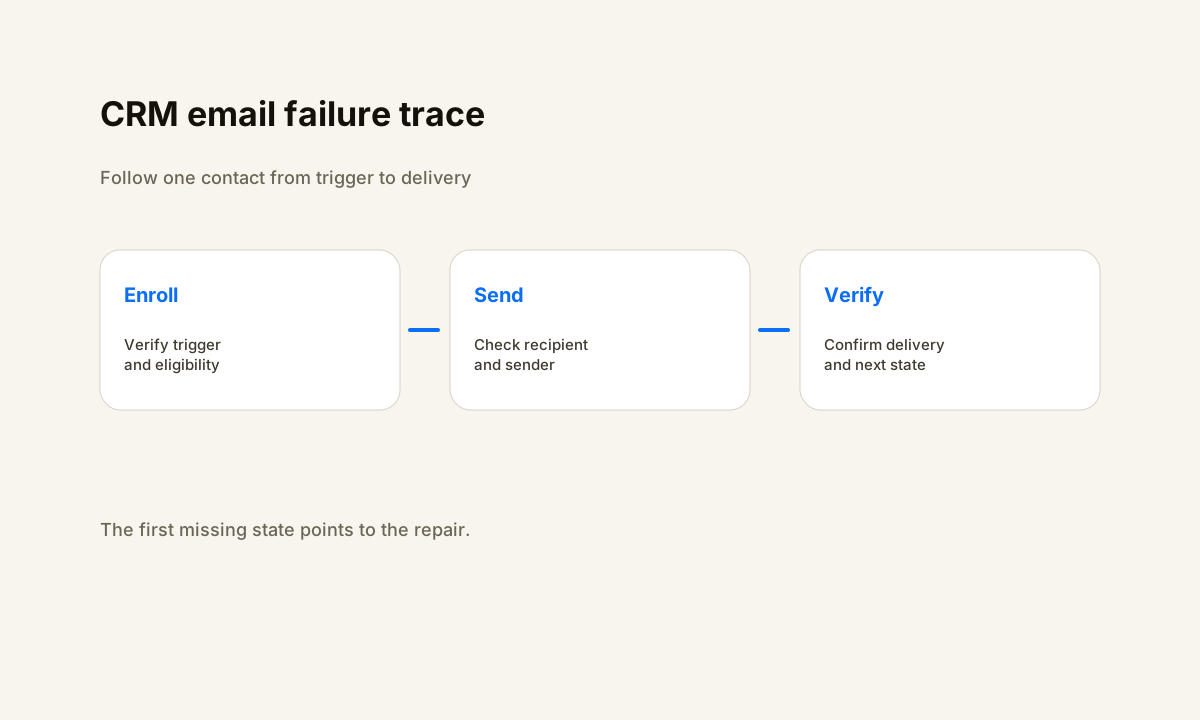
- Trace one known contact from the CRM event through enrollment, the email action, provider outcome, and the mailbox delivery state.
- Separate workflow eligibility from sender authentication, recipient data, provider rejection, suppression, and mailbox filtering.
- Use execution history and delivery evidence so an active-looking automation cannot hide failed messages.
- Verify the next CRM state after the email, such as a task, stage, reply owner, or follow-up state, instead of treating the send event as completion.
Where CRM Email Deliverability Failures Start
Email deliverability problems are easy to misdiagnose because several systems participate in one send. The CRM decides whether the contact qualifies. The workflow executes an email action. A sending service accepts or rejects the message. The receiving mail system evaluates the sender and message.
The inbox may then place the email in an inbox, spam folder, quarantine, or another filtered destination. A later CRM task or reply route may also fail even when delivery succeeded.
Start with one known contact and write down the expected states in order. A useful trace includes source_event_at, contact_id, workflow_enrolled_at, email_action_at, recipient_address, sender_identity, provider_message_id when available, delivery_state, exception_reason, and next_action_owner. The exact field names can differ, but each state should tell you whether the message moved to the next layer.
HubSpot separates automation and workflow execution issues from records that never enroll. HighLevel exposes workflow execution logs and enrollment history for the same reason: troubleshooting needs record-level evidence. If the contact never enrolled, deliverability is not the first problem.
If the email action executed but the provider or mailbox later rejected the message, changing enrollment logic will not repair the failure.
If the trace already shows conflicting or duplicate contact data, use the CRM data cleanup automation guide before adding more workflow branches. Reliable delivery starts with a reliable contact and a known sending identity.
Check 1: Prove the CRM Reached the Email Action
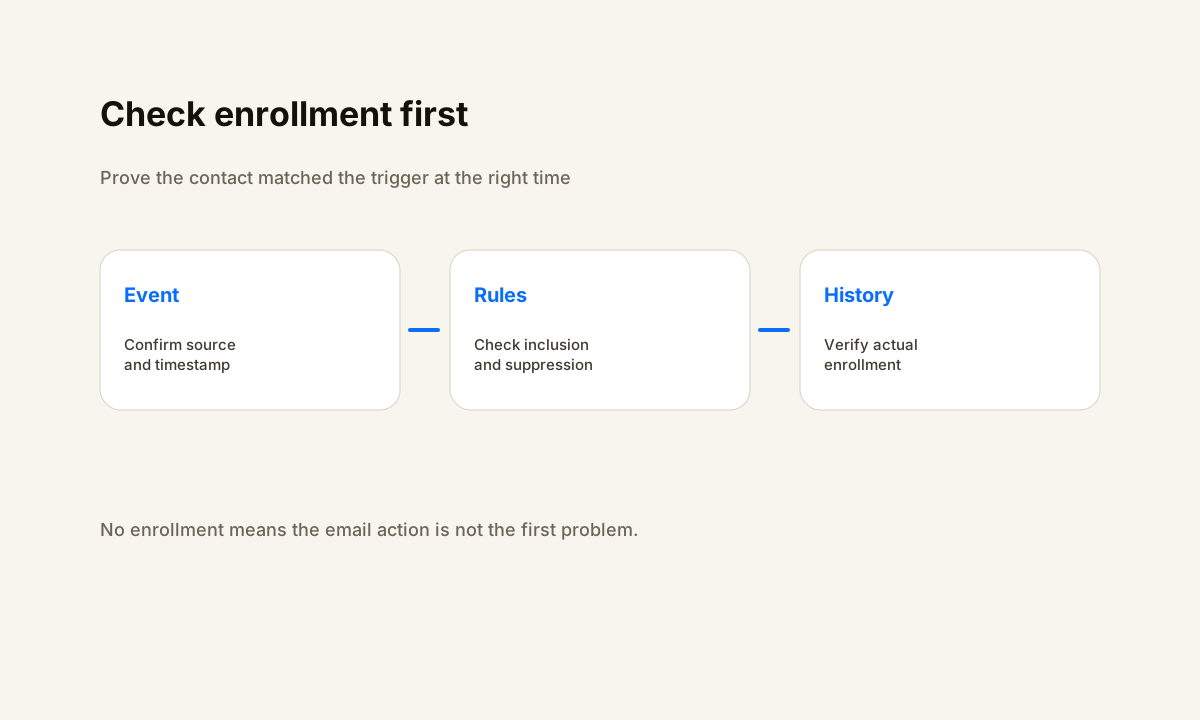
Begin with the event that should have started the automation. It might be a form submission, stage change, appointment state, list membership, tag, or another property change. Verify that the event happened for the exact contact and that every enrollment condition was true at that time.
A record can look eligible now even if a required field was empty when the workflow evaluated it.
Then open execution history for that contact. Confirm the workflow enrolled the record, followed the expected branch, and reached the email action. Check exclusion rules and suppressions as carefully as inclusion rules. A contact can match the main trigger and still be blocked by prior enrollment, subscription state, lifecycle criteria, a schedule rule, or another platform condition.
Use a controlled test contact whose field values you can inspect before the trigger fires. Change only the event required to enter the workflow, then confirm the resulting execution. If the record never reaches the email step, fix that state before diagnosing sender reputation or mailbox placement.
The CRM workflow design guide shows how to make trigger fields and exception paths explicit.
Checks 2 and 3: Validate Recipient Data and Sender Identity
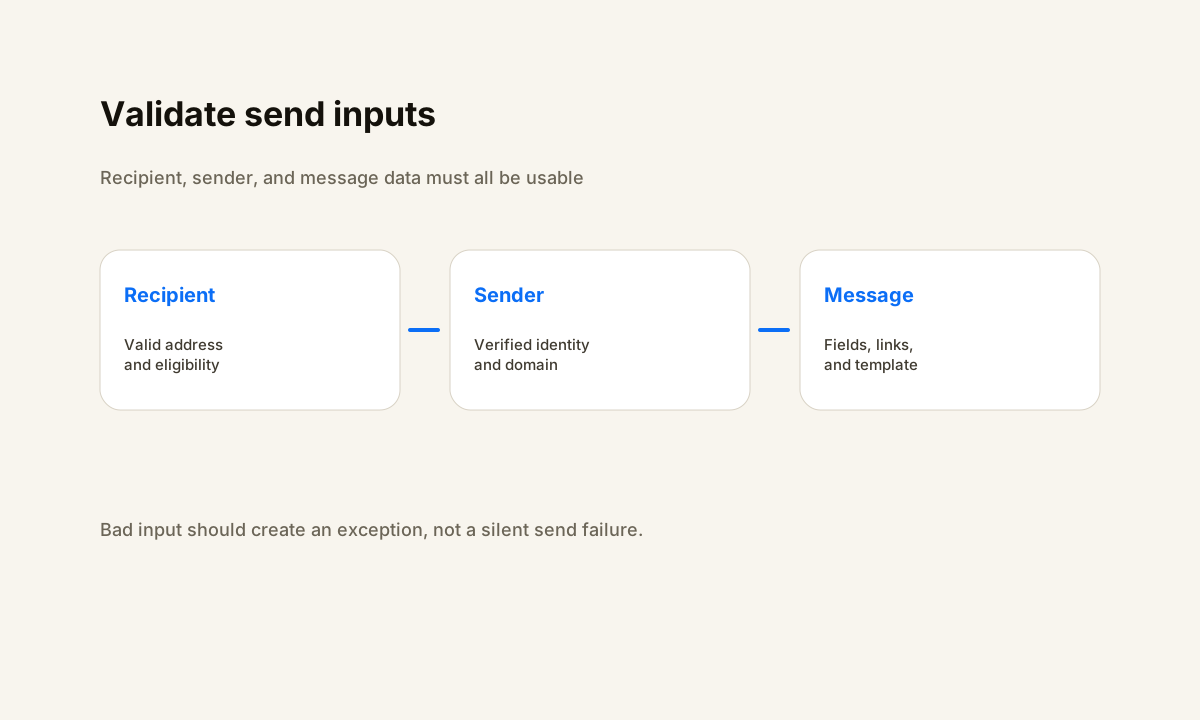
Once execution is proven, inspect the inputs to the email action. The recipient address should exist on the intended contact, be the field the action actually references, and pass applicable consent, subscription, and suppression rules. Verify personalization fields too.
A missing name is usually cosmetic, but a missing recipient, wrong contact record, or invalid routing field can stop the send or direct it somewhere unintended.
Next verify the sender. HighLevel's current Send Email action documentation treats the sender name and sender email as core configuration and recommends testing before activation. The operational rule is broader than one CRM: the automation needs a valid sender identity, the required permissions, and a sending domain or mailbox that is correctly configured for the provider in use.
Internet mailbox providers also evaluate authentication and sender practices. Google's current Gmail sender guidelines require authentication for mail sent to personal Gmail accounts and add further requirements for bulk senders. Treat SPF, DKIM, DMARC when applicable, sender alignment, and provider configuration as infrastructure state.
Those settings can break independently of the CRM workflow, so verify them instead of assuming a green workflow step proves deliverability.
Checks 4 and 5: Inspect the Send Action and Provider Outcome
Open the exact execution that reached the email action and compare the actual inputs with what the message expected. Check the recipient, sender, body or template, personalization fields, links, attachments, and the branch output that selected the message. If a prior lookup or synchronization step supplies any of those values, confirm it finished before the send action ran.
Then find the provider result. A useful record can be a message identifier, explicit success state, bounce reason, rejection, deferral, or another delivery event exposed by the platform. Do not infer delivery from a generic workflow completion icon.
HighLevel's execution history and HubSpot's workflow error views are useful because they let an operator connect the contact, action, and error context instead of guessing from current configuration.
Change one variable at a time. If sender verification is the observed failure, fix sender configuration and rerun the same controlled contact path. If a recipient address is invalid, correct the test record and repeat it. If the provider rejects a message because of a documented policy or configuration problem, repair that layer before editing unrelated workflow logic.
For broader workflow failures that are not specifically about email delivery, use the marketing automation failure checklist.
Check 6: Separate Provider Acceptance From Mailbox Delivery
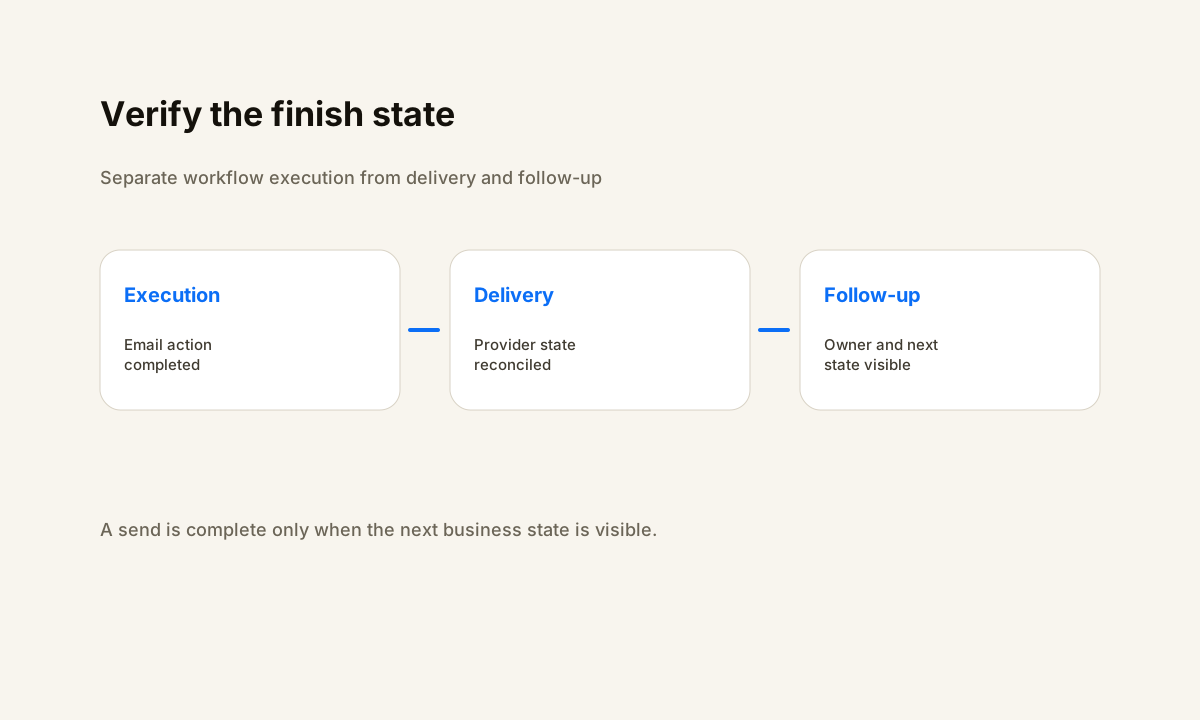
A send action completing does not always mean the recipient received the message where you expected. The CRM may successfully hand the email to a sending service while the receiving system later defers, rejects, or filters it. Keep workflow execution, provider acceptance, and mailbox delivery as separate states.
When the provider exposes a message identifier or delivery event, preserve enough evidence to reconcile those states.
This separation prevents two common troubleshooting errors. The first is repeatedly changing CRM logic when the real issue is sender authentication, recipient validity, provider configuration, or mailbox filtering. The second is blaming the mailbox when the CRM never executed the send. The first missing state tells you which system owns the repair.
After delivery, verify the next business state too. If the email should create a task, wait for a reply, change a lifecycle stage, or assign a person to follow up, check that state. A technically delivered email can still produce an operational failure when nobody owns the response.
The lead management automation failure guide covers that ownership problem in sales workflows.
Check 7: Run the CRM Email Deliverability Failure Checklist
Use one controlled contact and run these checks in order. Stop at the first failed state, repair that layer, and repeat the same trace. This makes the before-and-after evidence comparable and avoids turning a focused delivery problem into a larger workflow rewrite.
- Can you prove the source event happened for the exact contact and record its timestamp?
- Can you prove the contact enrolled and reached the intended email action?
- Are the recipient address, sender identity, subscription state, and required personalization fields valid?
- Does execution history show the email action completed without an earlier error or unexpected branch?
- Can you identify provider acceptance, a message identifier, or an explicit send error rather than assuming the action delivered?
- Can you distinguish delivery, bounce, rejection, deferral, or filtering from CRM execution?
- Did the workflow create the expected next CRM state, owner, task, wait state, or reply-handling path?
After the repair, monitor the path as a small state machine. A practical operational view can show eligible contacts, enrollments, send attempts, provider failures, delivery exceptions, suppressions, and records with no next owner. Where timing matters, compare elapsed time from the source event to send and from send to the next business state.
Retest after changes to enrollment rules, sender domains, mailboxes, authentication, templates, recipient fields, subscription rules, connected apps, user permissions, or reply-routing logic. Keep a known test path and one visible exception owner. If several systems participate in the same customer journey, the HWA automation process shows how trigger, action, handoff, and verification fit together.
Sources
Frequently Asked Questions
What causes CRM email deliverability failures?
CRM email deliverability failures can come from workflow eligibility, invalid recipient data, sender configuration, authentication, provider rejection, suppression, or mailbox filtering. Trace one known contact through CRM execution and delivery states to find the first missing state.
How do I troubleshoot CRM email deliverability?
Use one controlled contact and verify enrollment, the email action, recipient and sender fields, provider acceptance, bounce or delivery state, and the expected next CRM state. Change one thing at a time and repeat the same trace.
Can a CRM show sent when an email was not delivered?
Yes. A completed send action can mean the CRM handed the message to an email service while the receiving mailbox can still reject, defer, or filter it. Verify the available provider and delivery state before calling the workflow healthy.
What CRM fields should be checked before an automated email?
Check the stable contact identifier, recipient email, consent or subscription state where applicable, the lifecycle or pipeline fields used by the trigger, sender identity, and every personalization field required by the message.
How should CRM email deliverability be monitored after a fix?
Monitor enrollments, send attempts, failures, provider outcomes, bounces or delivery errors, suppressions, and the next CRM state that should follow the email. Retest after meaningful changes to triggers, sender settings, templates, fields, or connected services.
Related Resources
Need help fixing a CRM email delivery path?
Help With Automation can map the trigger, sender, provider, delivery evidence, exception handling, and follow-up state so your team can see exactly where the email path breaks.
Book a consultation